A Dead Man's Switch for Docker Compose Updates with Uptime Kuma

Introduction
If you self-host a few Docker Compose stacks, keeping them updated means:
- SSH-ing in
cd-ing into each app directory- running
docker compose pull && docker compose up -dfor each one.
Once you have more than two or three stacks, this gets tedious. And if a pull fails at 03:00 on a Sunday, you probably won’t notice until something stops working days later.
Watchtower used to handle this. It watched running containers and pulled new images automatically. The original project was archived by its maintainers on 17 December 2025 with no further releases planned. There are good alternatives now: nicholas-fedor/watchtower is a maintained fork, What’s Up Docker (WUD) does image-update notifications, and Diun handles registry-level change detection.
We went with a different approach:
- two shell scripts
- a couple cron entries
- a push monitor on Uptime Kuma.
The scripts are about thirty lines total. There’s no daemon to run, no configuration file to maintain. Cron triggers the update weekly, and Uptime Kuma tells us whether it worked.
Uptime Kuma is a self-hosted monitoring tool. We have a dedicated article on setting it up.
Working Principle: The Dead Man’s Switch
The technique we’re using has a name. A dead man’s switch is a control that defaults to “stop” and must be actively held open by a live signal. The term comes from late-1800s electric trams and trains, where the operator’s handle is spring-loaded so that if the operator slumps or releases the handle, the controller cuts power and engages the brakes. The pattern saw widespread adoption in US transit after the Malbone Street wreck of 1918.
The same inverted logic drives this pipeline. Each successful run of update.sh ends with a curl ping to the Uptime Kuma push monitor. The monitor’s 7d+1h window is the “held-open” interval. If cron never fires, the script aborts before reaching the notifier, the server is offline, or the network is dropping requests. As a result, no ping arrives. After the retries expire, the monitor flips to down and Kuma fires whatever notification channel you’ve configured. The script died and the switch flips to alert us: something went wrong.
Note: We sometimes send a ping within the held-open interval for failures detected by the script. We sent a signal through to Uptime Kuma even though the interval has not closed yet. That’s when we’re absolutely sure that something’s definitely gone wrong and we should get informed about it right away.
Several services exist purely for this pattern: Healthchecks.io is the canonical open-source one, Dead Man’s Snitch is the commercial counterpart that popularised the name, and Prometheus ships a Watchdog alert so you can use a dead man’s switch to monitor your own alerting pipeline. Uptime Kuma’s push-type monitor is the same mechanism — we use it here because we already self-host Kuma and don’t want another service to maintain.
Prerequisites
- Docker version 20.10 or later with the Compose plugin.
- One or more Docker Compose stacks you already run, each in its own directory (e.g.
~/apps/it-tools/docker-compose.yaml). - A working Uptime Kuma instance with the ability to create a Push-type monitor.
- SSH access to the server that runs your Docker stacks, and the ability to edit the crontab on it.
Verification
Everything from this point on happens on the remote server, not your local machine. Set up your keys (recommended) and SSH in first:
1ssh user@your-server
Let’s check that the required tools are available next:
1docker --version
Expected output:
1Docker version 29.0.1, build eedd9698e9
Check that Docker Compose is installed:
1docker compose version
Expected output:
1Docker Compose version 2.40.3
Check that curl is available (we need it for the push notification):
1curl --version
Expected output (first line is enough):
1curl 8.12.1 (x86_64-pc-linux-gnu) ...
Check that you can access the crontab:
1crontab -l
This should either print your current crontab or say no crontab for <user>. Either is fine.
Finally, confirm your Compose stacks are where you expect them:
1ls ~/apps/*/docker-compose.yaml
You should see a path for each stack you manage.
Create the Push Monitor in Uptime Kuma
Open your Uptime Kuma dashboard and click Add New Monitor. Set the Monitor Type to Push.
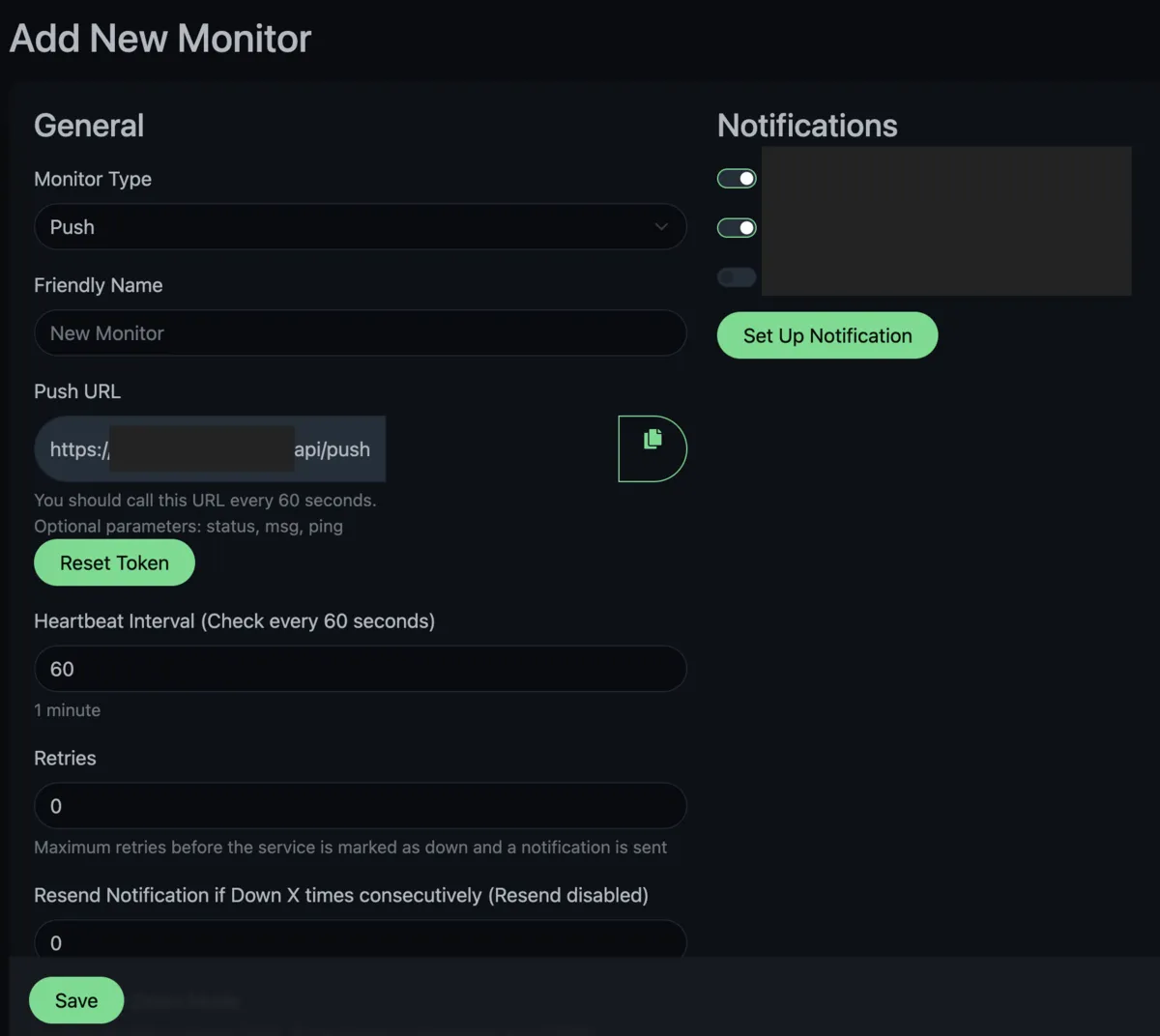
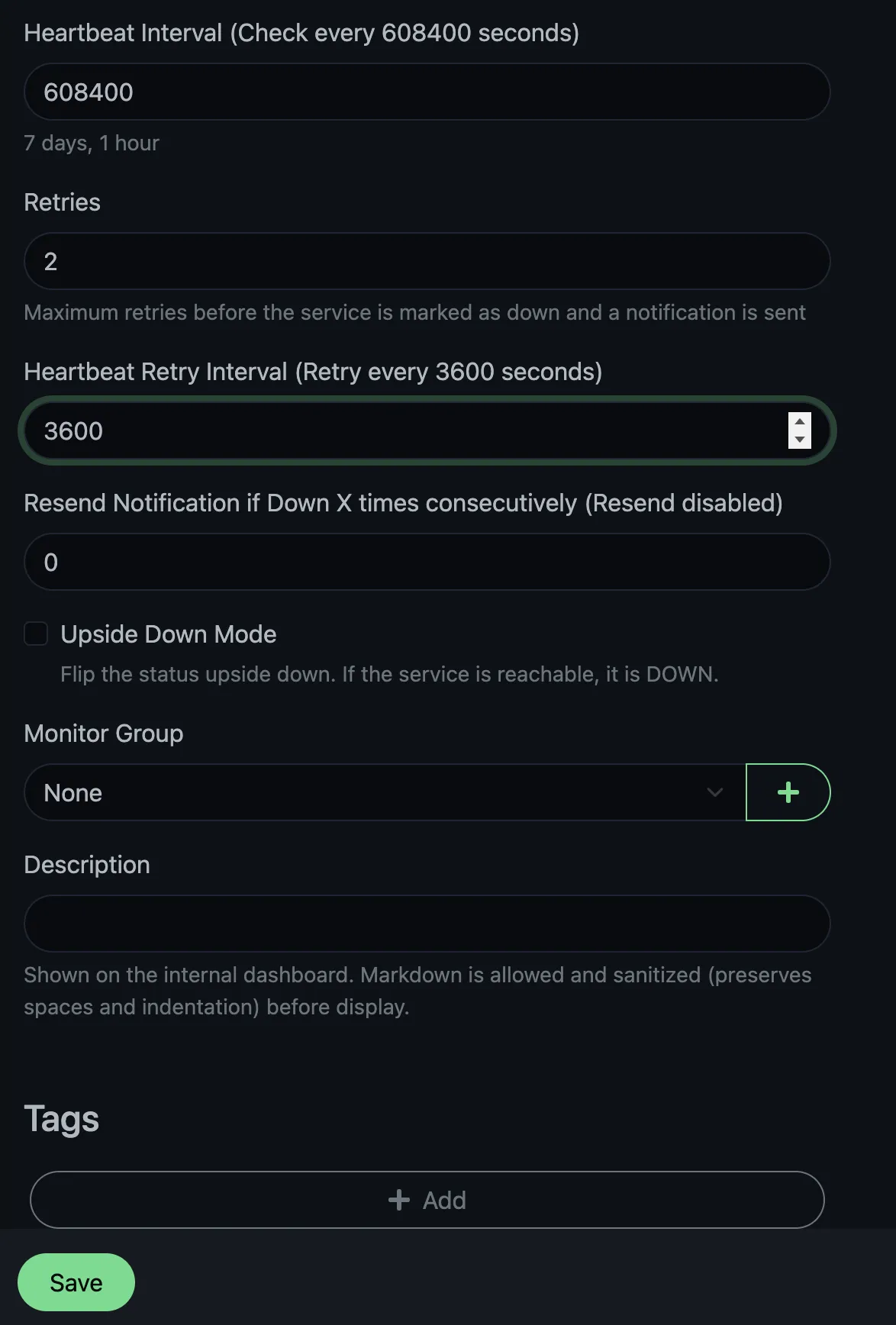
Give it a name like Weekly Updates. The important setting is the Heartbeat Interval. Since we’re running our update once a week, we want Uptime Kuma to expect a heartbeat roughly every seven days. That’s the dead man’s switch interval, held open by each weekly ping. Set the interval to seven days plus one hour (608,400 seconds). The extra hour means that if the update starts a few minutes late or takes longer than usual, Uptime Kuma won’t mark it as down straight away.
Set Retries to 2 and Heartbeat Retry Interval to 3600 seconds (1 hour). If Kuma misses the expected heartbeat, it’ll wait and retry twice at one-hour intervals before marking the monitor as down. This avoids false alarms if the update script takes even longer or the push request gets lost.
After saving the monitor, Uptime Kuma shows you a push URL. It looks like this:
1https://your-uptime-kuma.example.com/api/push/REPLACE_WITH_YOUR_TOKEN?status=up&msg=OK&ping=
Copy this URL. We’ll need it in the update script. The URL accepts three query parameters: status (up or down), msg (a short message), and ping (response time in ms, which we leave empty). You can see how the endpoint works in the source code. Anyone with the token can push status to the monitor, but they can’t read anything from your Kuma instance.
IMPORTANT: Keep it out of public repositories. Treat this like a password, keep it a secret!
The Notifier Script: notify_kuma.sh
This script pushes a status (up or down) with a short message to your Uptime Kuma push monitor. We keep it as a separate file so we can reuse it for other cron jobs later.
 1#!/bin/bash
 2# notify_kuma.sh: Push a status update to an Uptime Kuma push monitor.
 3
 4set -euo pipefail
 5
 6USAGE="Usage: notify_kuma.sh <up|down> <message> <push-url>"
 7
 8STATUS="${1:?$USAGE}"
 9MSG="${2:?$USAGE}"
10PUSH_URL="${3:?$USAGE}"
11
12# Simple "space to +" encoding for the query string
13ENCODED_MSG="${MSG// /+}"
14
15FULL_URL="${PUSH_URL}?status=${STATUS}&msg=${ENCODED_MSG}&ping="
16
17HTTP_CODE=$(curl -s -o /dev/null -w "%{http_code}" "$FULL_URL")
18
19if [ "$HTTP_CODE" -ne 200 ]; then
20    echo "WARNING: Uptime Kuma push failed with HTTP $HTTP_CODE" >&2
21fi
It takes three arguments: status (either up or down), msg (a short human-readable message), and the push url. It does a space-to-+ encoding on the message so it works in the URL query string, then calls curl and checks for an HTTP 200 response. If the push fails, it prints a warning to stderr. You’ll see it in the cron logs if you decide to set up a log file.
The ping= parameter is left empty. Uptime Kuma treats that as “no latency measurement”, which makes sense for a batch job. Feel free to drop it from the script if it feels unnecessary.
The Update Script: update.sh
This script cleans up disk space, loops through your Compose stacks, pulls new images, restarts services, and calls the notifier at the end.
 1#!/bin/bash
 2# update.sh: Pull and restart Docker Compose stacks, then notify Uptime Kuma.
 3
 4SCRIPT_DIR="$(cd "$(dirname "${BASH_SOURCE[0]}")" && pwd)"
 5
 6KUMA_URL="https://your-uptime-kuma.example.com/api/push/REPLACE_WITH_YOUR_TOKEN"
 7
 8# Add your Compose stack directories here, one per line.
 9APPS=(
10    "/home/<user>/apps/paperless-ngx"
11    "/home/<user>/apps/it-tools"
12    # "/home/<user>/apps/another-stack"
13)
14
15echo "Pruning unused Docker resources..."
16docker system prune -f
17docker image prune -af
18echo "Docker cleanup complete."
19
20FAILED=0
21
22for APP in "${APPS[@]}"; do
23    echo "Updating: $APP..."
24    cd "$APP" || { echo "ERROR: Could not cd into $APP" >&2; FAILED=1; continue; }
25
26    if docker compose pull && docker compose up -d; then
27        echo "OK: $APP updated successfully"
28    else
29        echo "FAIL: $APP had errors" >&2
30        FAILED=1
31    fi
32done
33
34if [ "$FAILED" -eq 0 ]; then
35    "$SCRIPT_DIR/notify_kuma.sh" up "All stacks updated successfully" "$KUMA_URL"
36else
37    "$SCRIPT_DIR/notify_kuma.sh" down "One or more stacks failed to update" "$KUMA_URL"
38fi
Here’s each part in more detail:
Disk Cleanup
docker system prune -f removes stopped containers, unused networks, dangling images, and unused build cache.
docker image prune -af then removes all unused images (not only dangling ones) on a weekly schedule, old image tags build up and this reclaims the space.
You will re-download layers if you later docker run an older tag, but for a weekly homelab job that’s a reasonable trade-off. The Docker documentation on pruning covers this in more detail.
The APPS Array
Each entry is an absolute path to a directory containing a docker-compose.yaml. Edit this list to match your setup.
The Update Loop
For each app, the script cds into the directory (the || means a missing directory won’t stop the whole script), then runs docker compose pull && docker compose up -d.
The && between pull and up -d matters: if the pull fails (say, a network timeout), we don’t restart the containers with stale images. If something fails, the FAILED flag gets set, but the loop keeps going. A problem with one stack doesn’t stop the others from updating.
The Notification
After the loop finishes, the script calls notify_kuma.sh once. It sends up if everything worked, down if anything failed.
Make both scripts executable, and restrict update.sh your user only since it contains the push URL:
For most homelab setups this is sufficient. If you want to go stricter, you could pull the push URL from a secret manager at runtime instead of hardcoding it in the script. We mention phase.dev for secret management later in this article as an option.
Scheduling With Cron
Add two entries to your crontab with crontab -e:
17  3 * * 0 /home/<user>/apps/update.sh >> /home/<user>/apps/update.log 2>&1
241 3 * * 0 /home/<user>/apps/update.sh >> /home/<user>/apps/update.log 2>&1
This runs the update script every Sunday at 03:07, and again at 03:41. We use odd minutes (7 and 41 instead of 0 and 30) so the job doesn’t fire at the same time as logrotate, backup scripts, or anything else pinned to the top or bottom of the hour. It’s a small thing, but it avoids timing collisions. Use any number you wish, or stick to clean multiples of half-hours, if that’s your preference.
The duplicate entry about half an hour later is there because stacks sometimes fail on the first attempt for reasons that resolve on their own. For example: a transient registry timeout, a sibling container still starting up. Running it again a bit later catches those, and when the first run already succeeded, the second one does nothing. Images are already pulled, containers are already running.
Both runs append to update.log. This log grows over time. You can configure logrotate for it, or just truncate it manually with truncate -s 0 ~/apps/update.log when needed. If you don’t want to look at the logs for this script (I don’t), you can leave out the >> /.../update.log 2>&1 bit.
How It Looks In Practice
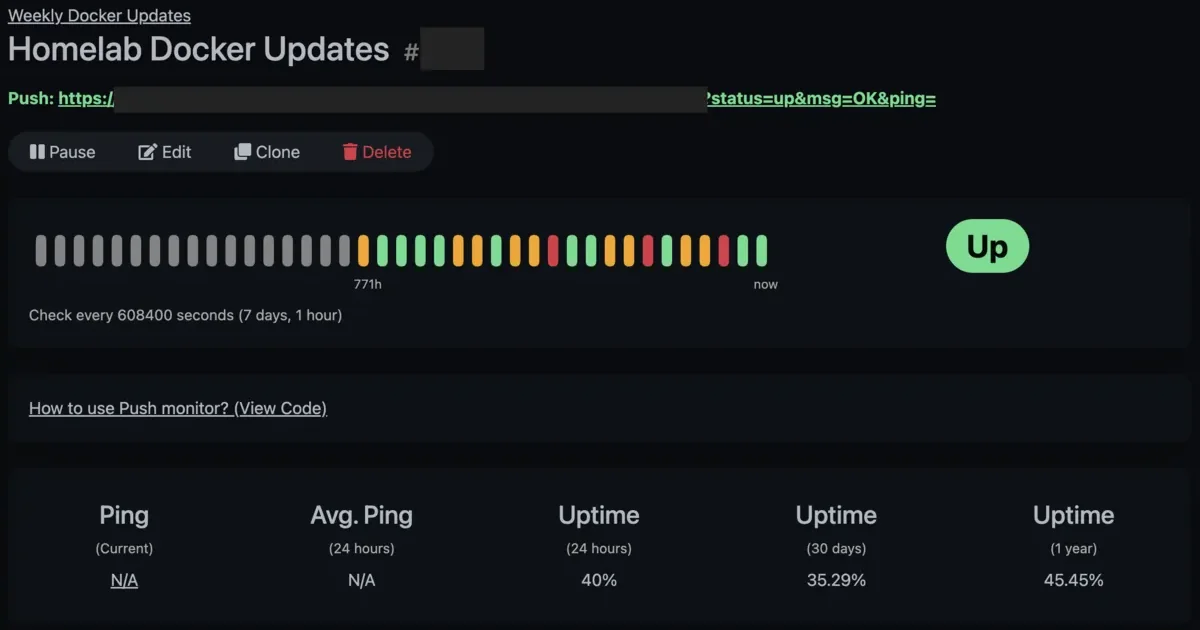
Our Uptime Kuma dashboard shows the Weekly Updates monitoring group with its heartbeat history. Green bars are successful runs, orange ones are pending or waiting for retries, and red means retry window exceeded and it’s marked a proper failure with notification. You can see all three states at a glance.
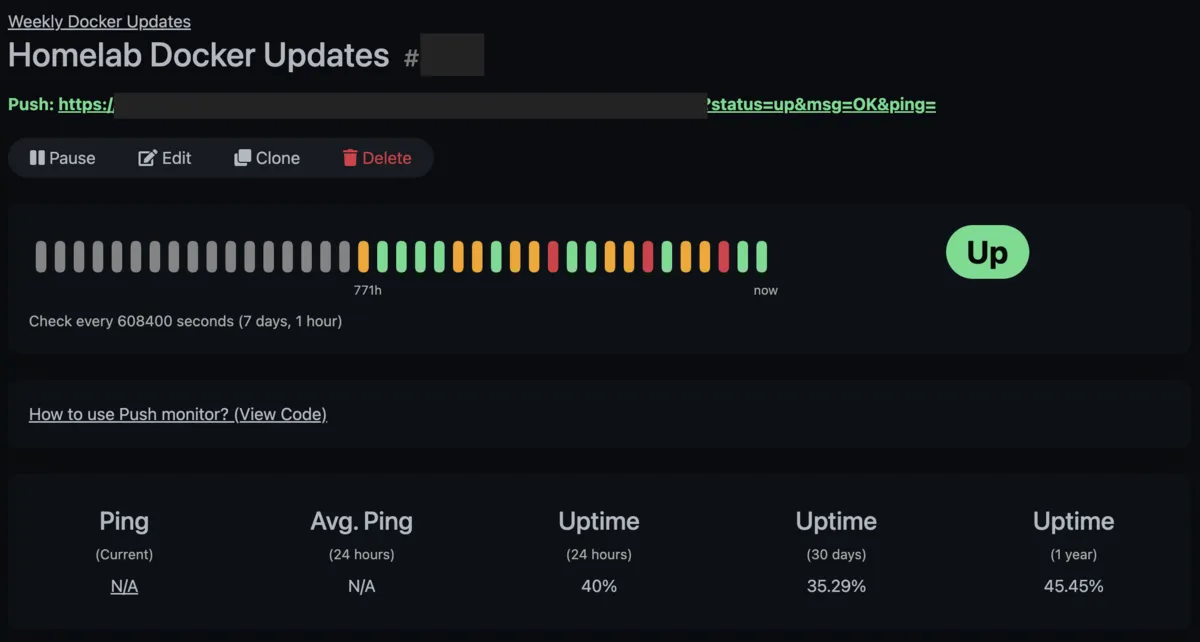
If you have notifications configured in Uptime Kuma (Discord, Telegram, email, ntfy, Apprise, and many others), you’ll get an alert when the monitor goes down. You will be notified about failures, and the first success after a failure.
A Note on Secret Management
You might not want .env files sitting next to your Compose files. One option is Phase, an open-source secret manager (source on GitHub). You can prefix your Compose commands with phase run to inject secrets as environment variables at runtime:
1phase run --env prod docker compose up -d
This keeps secrets out of the filesystem. We’ll cover setting up Phase in a dedicated article.
For an open-source audit of Uptime Kuma (telemetry, licence, push endpoint behaviour) and ways to support the project, see our Uptime Kuma article.
Conclusion
The whole setup is two scripts, a couple cron entries, and a push monitor. Your Docker Compose stacks get pulled and restarted weekly, and you only hear about it when something goes wrong.
Let us know if you’ve done something similar. Like per-stack backups before updating, Slack notifications, or used a different monitoring tool.
Comments