Never Locked Out: Monitoring SSH Reachability with Uptime Kuma and Tailscale

Introduction
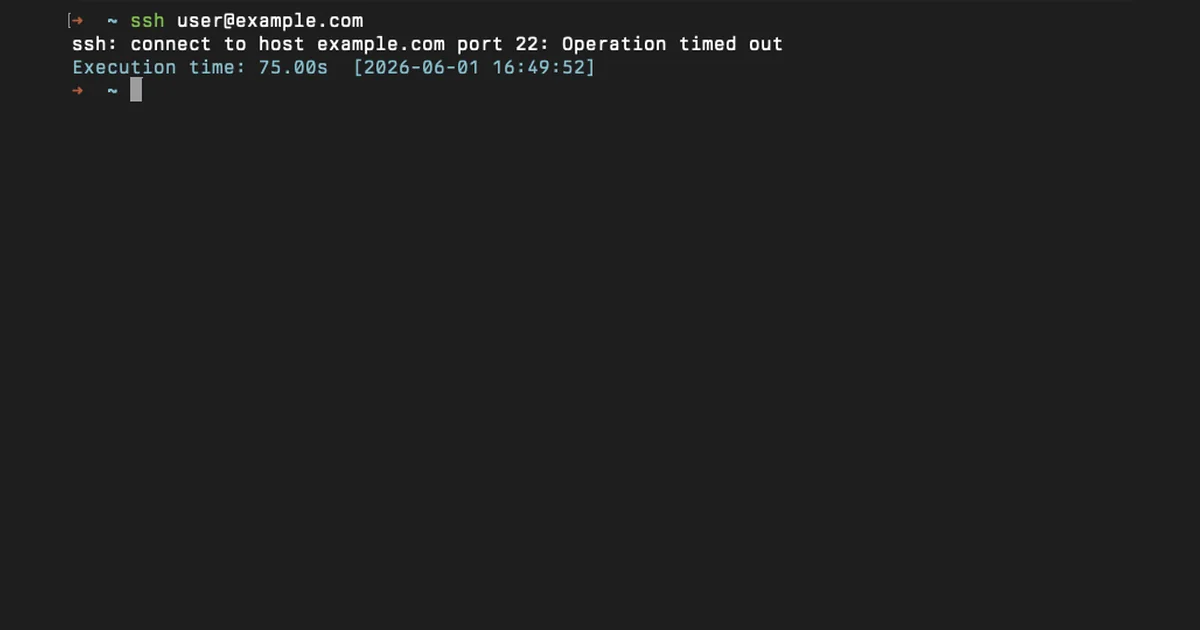
This article is about a small, focussed application of Uptime Kuma. There is an enormous variety of things you can monitor with it. One such item you can monitor is a TCP port. I use this functionality to watch TCP port 22 on every machine in my Tailscale tailnet. This helps me find out about a machine being unreachable via SSH before anything else goes down, and while trying to SSH in I discover there’s no way in.
If you haven’t set up Uptime Kuma yet, we have a dedicated article on installing it.
Why Monitor SSH?
SSH is the entry point to our machines, both remote and local. Anecdotal experience suggests that SSH failures are of the silent kind. sshd might break after an update. You could forget to reboot after a kernel update, a firewall might block port 22 without you knowing, or you might accidentally lock yourself out by incorrectly changing the sshd_config file. The machine keeps running, independent of all these cases. You only realise the entrance is inaccessible when you try to walk through it, which is usually the moment you actually need it.
A passive, instantaneous check every minute barely costs anything, and it turns a “that machine won’t let me in” problem into an alert that comes hours sooner.
Note that this covers the necessity of monitoring. By itself, it will not be of much use unless you have a fallback mechanism for regaining access to your machine(s). We talk about it in this section.
Prerequisites
- A working Uptime Kuma instance with at least one notification channel configured.
- Tailscale installed on the machines you want to monitor, with MagicDNS enabled.
- The Uptime Kuma host on the same tailnet, so it can resolve MagicDNS names and reach the other machines over the WireGuard mesh.
sshdlistening on port 22 on each target machine. If you’ve moved SSH to a different port, substitute that everywhere below.
Verification
Before adding monitors, confirm that the Uptime Kuma host can actually reach each machine over Tailscale. Run these from the host that runs Uptime Kuma.
Check that Tailscale is up:
1tailscale status
You should see a list of peers in your tailnet with their MagicDNS short names in the first column.
Resolve a MagicDNS short name to a 100.x.y.z Tailscale address:
1tailscale ip gandalf
Replace gandalf with one of your machine names. Expected output:
Confirm port 22 actually answers from this host:
1nc -zv gandalf 22
Expected output:
1Connection to gandalf (100.64.0.12) 22 port [tcp/ssh] succeeded!
If any of those fail, fix the Tailscale side first. Uptime Kuma will see exactly what your shell sees.
Add a TCP Port Monitor
In the Uptime Kuma dashboard, click Add New Monitor. Set Monitor Type to TCP Port.
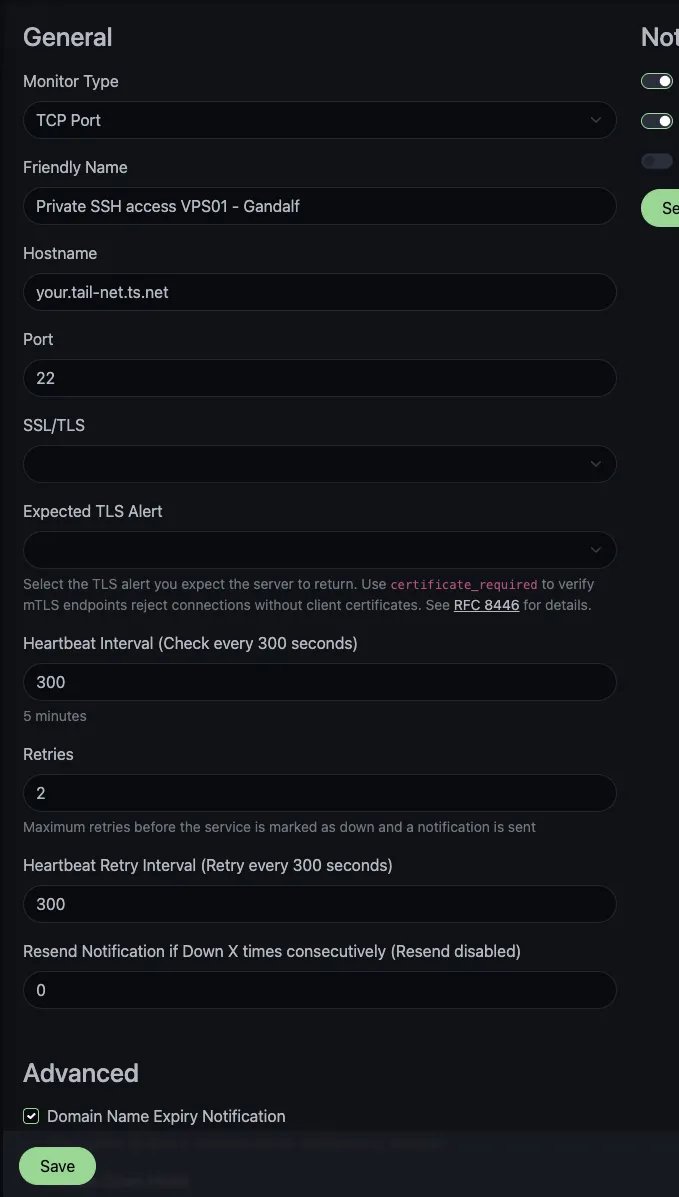
Fill in the form:
- Friendly Name: something like
SSH: gandalf. When you have a dozen machines, prefixing withSSH:lets you filter the dashboard at a glance. For further organisation, you can create groups of monitors in Uptime Kuma as well. - Hostname: the MagicDNS short name:
gandalf, or the Fully Qualified Domain Name (FQDN):gandalf.tailnet-name.ts.net. Tailscale will resolve either over the tailnet. I personally use the FQDN. - Port:
22for SSH. - Heartbeat Interval:
300seconds (five minutes) is a sensible default for SSH. It’s quick enough to check before you need the box, and slow enough to keep ‘sshd’ logs from getting too noisy. Set it to60to get faster alerts when the situation requires it. - Retries:
2is plenty. - Heartbeat Retry Interval:
300seconds. It matches the heartbeat interval. The system will attempt to wait out minor, temporary problems by trying to connect twice before issuing an alert. - Notifications: Attach whichever channel you’ve configured (email, ntfy, Discord, Telegram, and so on).
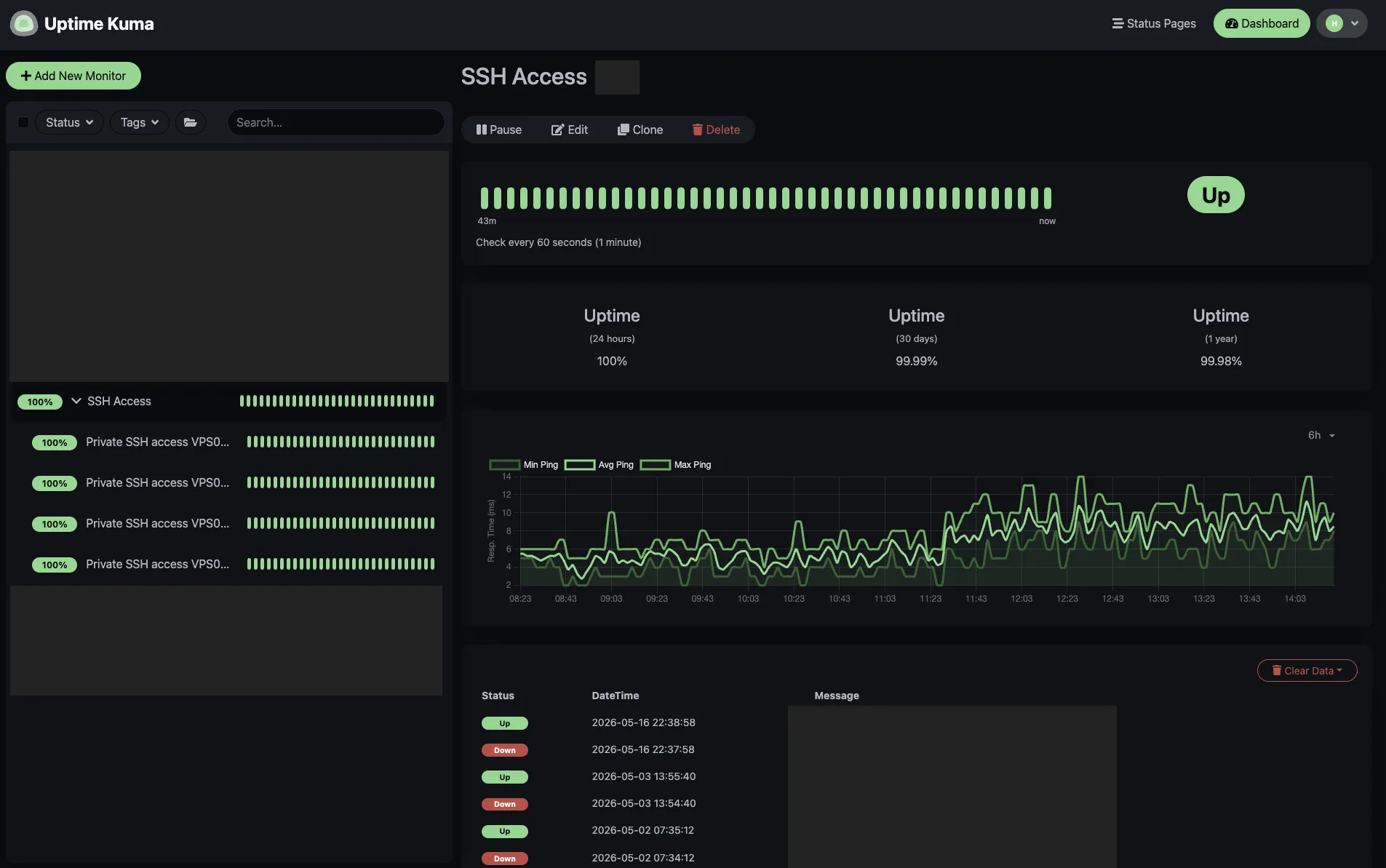
Save it, then repeat for every machine you care about. To save time, clone the first and change the hostname for the rest. A dashboard with one tile per machine takes minutes to set up and pays for itself the first time something quietly breaks.
Going Further: Catching Accidental Public Exposure
Let’s switch gears and consider the opposite scenario. This setup addresses and notifies you when tailnet SSH stops working. This doesn’t cover SSH access from unauthorised spots, anywhere outside your Tailscale network. Things can go wrong quietly if a firewall rule expires or ‘sshd’ ends up on a public interface because of a configuration mistake, endangering your tailnet-only setup.
A second Uptime Kuma instance running outside your tailnet (say, on a small VPS or a friend’s home server) can address this. Add a TCP Port monitor for the public hostname or IP of each machine on port 22, and turn on Uptime Kuma’s Upside Down Mode. When that’s toggled, “reachable” shows as DOWN. You will be notified when SSH unexpectedly becomes available on the public internet.
Note: I haven’t deployed this myself. The boxes are firewalled at the cloud-provider level, and I’ve trusted that single layer. If you decide to set it up, the wiring is the same shape as a normal TCP monitor. There’s a toggle to flip the monitoring to alert if something’s up instead of down.
There are other alternative approaches available. Upside Down mode on Uptime Kuma is pragmatic because we’re already self-hosting Uptime Kuma and we don’t want another tool to maintain.
Fallback Paths Before You Need Them
Monitoring is one part of the puzzle. It alerts you to the existence of a failure, that something went wrong. The other piece is administering the fix through fallback paths. These two support each other. Having only one of them is insufficient.
Test your provider’s out-of-band console on VPS-hosted machines to confirm you have an alternative means of entry before SSH becomes inaccessible. Hetzner Cloud’s Rescue System or the console, Akamai Linode’s Lish, and DigitalOcean’s Recovery Console all let you in over the provider’s own channel when the network path is broken. AWS, OCI, and Vultr have similar equivalents that function identically. Quickly boot a VPS into rescue, then log in, and save the page.
A USB keyboard, a working HDMI cable, and a functional display are simpler, more dependable fallback options for machines I can physically interact with. Dumb, but extremely reliable. Before setting up remote access through SSH and installing Tailscale on a new machine, I conduct this check to guarantee I can recover it, even with a broken network.
Here’s the full stack:
- Tailscale to connect to the box.
- Uptime Kuma to monitor its reachability.
- An out-of-band solution for when both fail together.
Conclusion
A simple TCP port monitor on port 22 over Tailscale’s Magic DNS is a tiny but powerful application of Uptime Kuma. This automation has saved me from guessing, “When did this machine go down?” This approach applies to any TCP service that needs monitoring within your tailnet. It could be a Redis instance, a Postgres database, a Minecraft server, or any service listening on a port.
How do you keep yourself from getting locked out of your own machines? Share it in a comment below!
Comments